
Plan Your Trip
Use the Web Trip Planner online or download the Transit app on your phone for on-the-go planning.
How to Use Transit's Web Trip Planner
Step 1
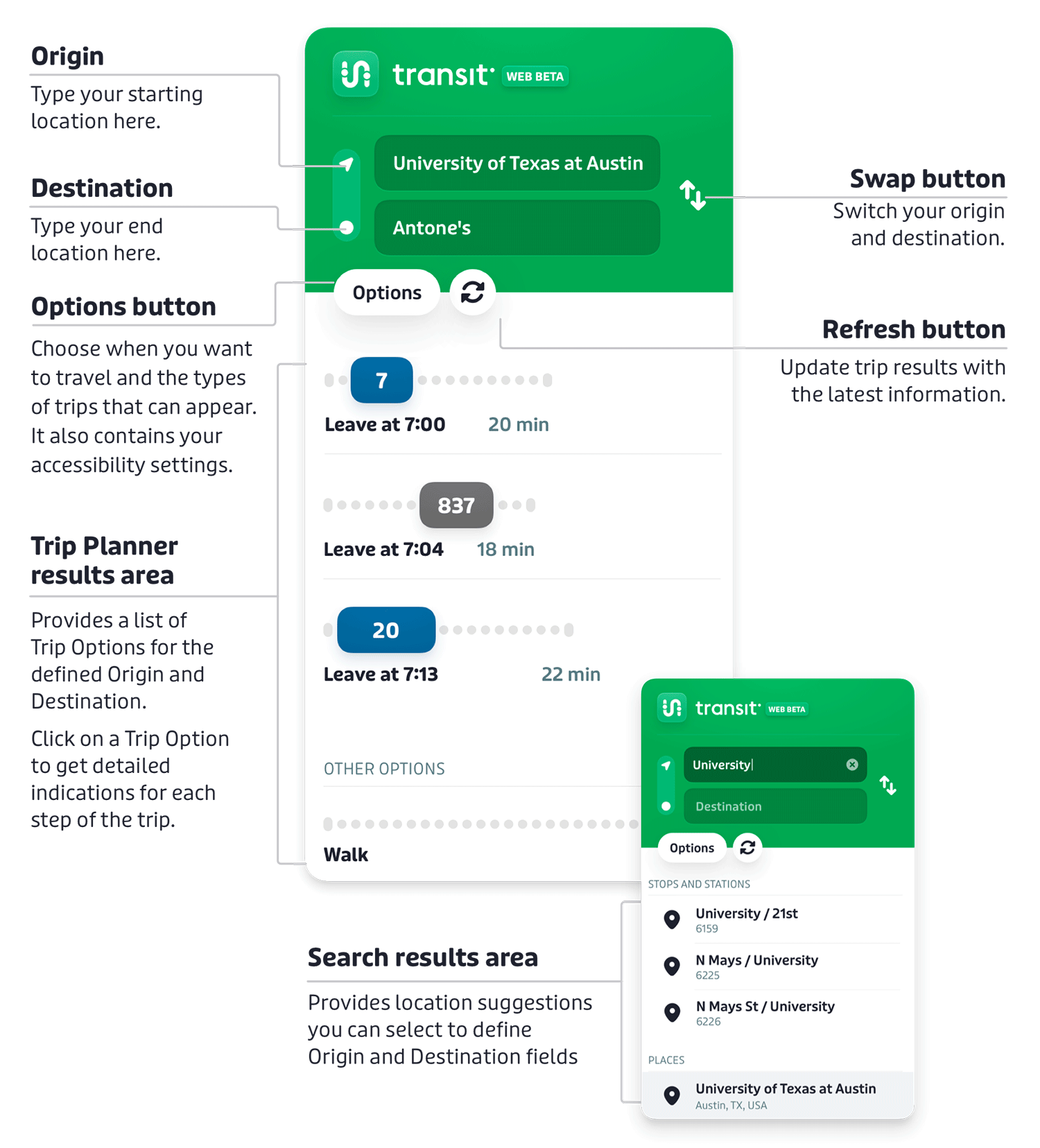
Tell the planner your Origin Location, or where your trip will start, by typing in the name of the place, the address, use the "Current Location" tool or find your location on the interactive map.
Step 2
Type in your Destination Location by using a name, address, the "Current Location" tool or selecting a location on the interactive map. There are several ways to customize your results, as shown in the image.
Hint: you can swap origin and destination by clicking the white arrows on the right!
Step 3
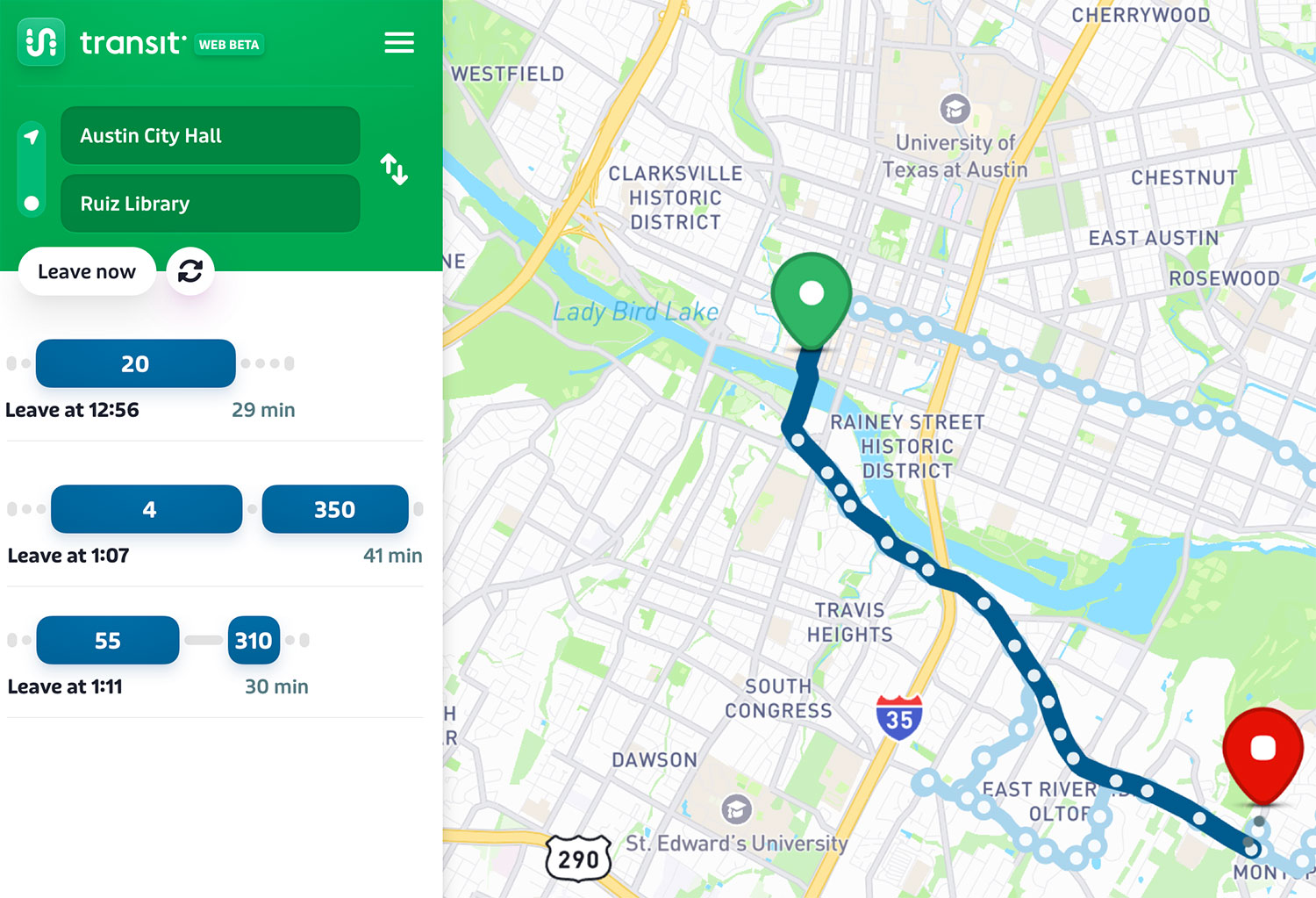
Transit generates one or more Trip Options for getting from A to B in a list on the left-hand side of the screen. Each Trip Option displays the total travel time in minutes including multiple modes (Bus, Rail, Pickup, walking, etc). Currently, the web planner is not able to display Biking or Bikeshare options.
Step 4
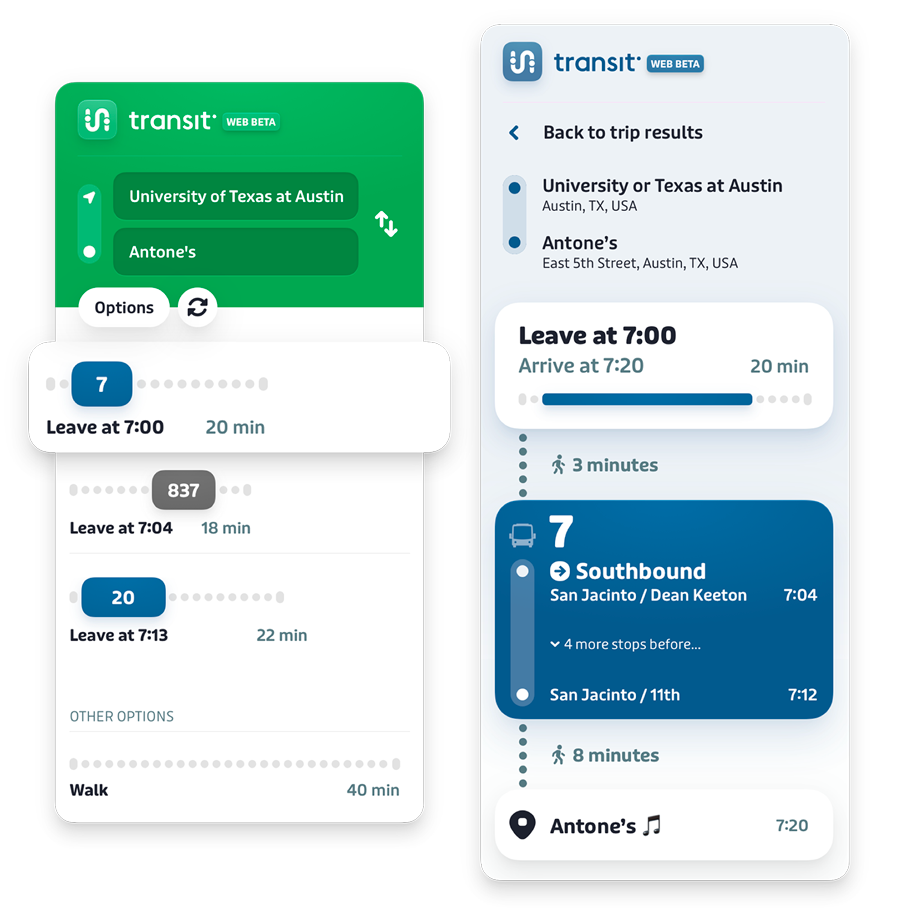
Clicking on each Trip Option for your journey displays step-by-step instructions for the Trip Option and shows the entire Trip Option on the map, allowing you to choose which one you like best.

Schedules & Maps
View individual route schedules and maps or download a map of our entire service area.

Service Alerts
Check important detours due to events, construction or weather before you ride.

Schedule Book
Our schedule book has everything you need to know aout CapMetro like service facts, rules and information on all our routes and stops.
Pay fare with Umo

Already planned your trip? Add money on the Umo app & pay per ride! No passes needed.
Load your wallet with debit card, credit card, Apple Pay or Google Pay. Digital payments have automatic daily and monthly fare caps.


Tap to Pay
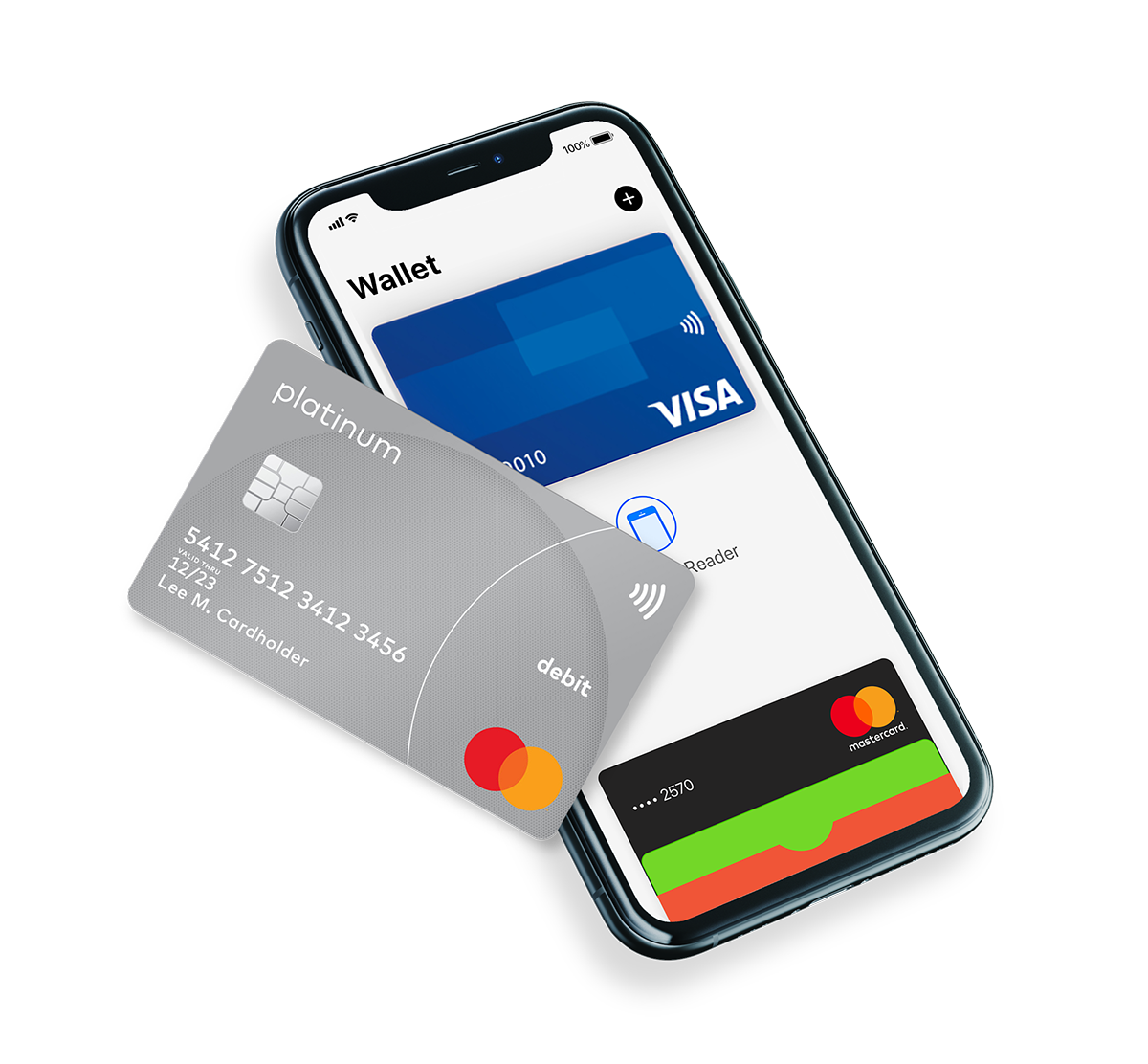
Pay your fare by simply tapping a contactless credit/debit card or payment-enabled phone—no app needed.
Contactless bank cards, credit or debit cards
Apple Pay or Google Pay
*American Express is not accepted